WP Vivtiger Image Resizer
Back in April, during the Reader Appreciation Week, I’ve participated in a contest hosted by Ronald Huereca on his blog Ronalfy, and won a fabulous prize for giving two suggestions on how to improve his website. The prize was any non-monetary thing I wish for, and since Ronald is so great at writing plugins for Wordpress, I wished for a custom plugin that would “proportionally resize my uploaded images to a pre-defined size, and link them to the original image in a popup window”.
Last month Ronald has completed the work on the plugin, calling it WP Vivtiger Image Resizer and publicly (with my permission, of course) releasing it on Wordpress.org. The plugin has been tested on all major browsers and used with Wordpress versions from v. 2.1 to the latest 2.3.
What is the Vivtiger Image Resizer?
The Image Resizer allows you to use the existing WordPress attachment system to upload, crop, and resize an image easily.
The plugin was designed to be simple and straight forward and is a bare-featured image-upload/crop/resize solution.
Who is Vivtiger Image Resizer For?
Vivtiger Image Resizer is for those who take a lot of screenshots and like to include them in posts. The plugin allows you to specify a maximum width and resize images based on the maximum width to fit the layout of your blog. There is also an option to link the cropped image to the bigger version in a new browser window.
Features
Vivtiger Image Resizer has the following features:
- Set the maximum width for images on your blog.
- Assign a crop ratio for resized images.
- Use the existing WordPress attachment system. There’s no need to learn a different system.
- Images are cropped and resized using AJAX.
- Large images can be inserted into a post with a single click.
- Large images can be launched in a new window.
- Numerous admin panel options.
Download
This page is the official home of the WP Vivtiger Image Resizer plugin. Please, download the plugin file vivtiger-image-resizer.1.0.2.0.zip
Installation
Installation is simple. Just follow these steps:
- Copy the “vivtiger-image-resizer” folder into your /wp_content/plugins/ directory.
- Activate the plugin in the Plugins administration panel.
- Customize the plugin in the Options section
Screenshots
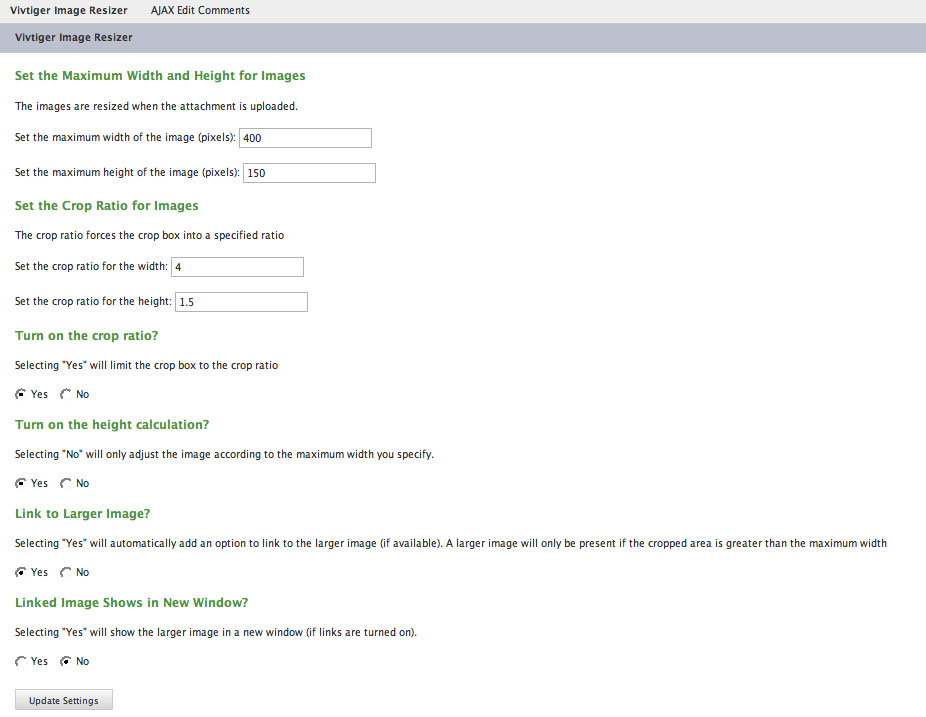
WP Vivtiger Image Resizer plugin Options panel

The image is to be cropped with the Crop Ratio turned On.

The image is already cropped with the Crop Ratio turned On, with no link to the larger image.
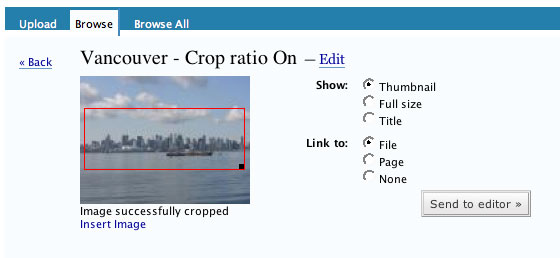
The image is already cropped with the Crop Ratio turned On, with the link to the larger image.
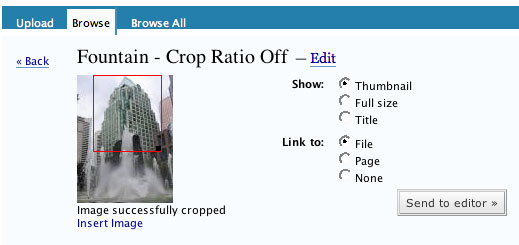
The image is already cropped with the Crop Ratio turned Off, with the link to the larger image.
Demonstration
For a demonstration, please view the following videos, courtesy of Ronald Huereca:
FAQ
How Does the Plugin Work?
The plugin works based on the maximum width set in the admin panel. If you upload an image larger than the maximum width, a crop overlay will show up on the attached image. You can then crop the image based on your preferences in the admin panel.
If the cropped image is greater than the maximum width, then an option will show up allowing you to insert a link to the larger image.
What Happens When I Crop an Image?
The image will be cropped according to the red-box selection. If the selection is larger than the maximum width you have selected, the image will then be resized to the maximum width.
What browsers does this plugin work for?
This plugin has been tested on Firefox 2.0, Opera 9, and IE 7.
Where can I find support for this plugin?
This plugin is AS IS. This was a custom plugin for Inspiration Bit, and I agreed to have it publicly released. It is highly unlikely any future updates to this plugin will be released.
Hope you’ll find this plugin useful. Please, do let me know what you think about it. Many thanks to Ronald for creating this wonderful plugin.
Updated version of Vivtiger Image Resizer plugin
A new version of the plugin has just been released by Ronald. Now you can Download version 1.1.5.0. Thew latest version of this plugin allows you to override crop options per image upload. This is especially useful if you need to insert different image sizes to your article.
Here are two screenshots with the new features:
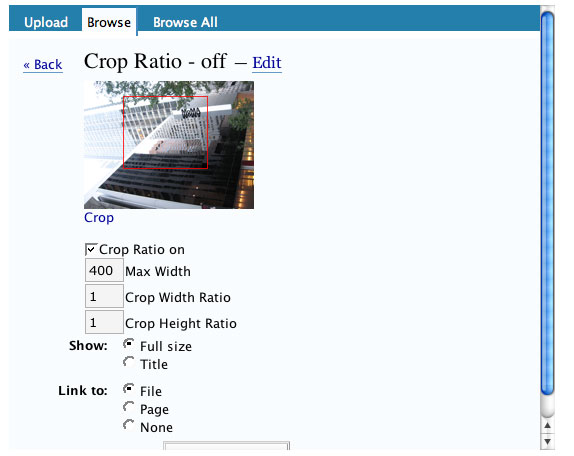
Crop Ratio - off, customized later
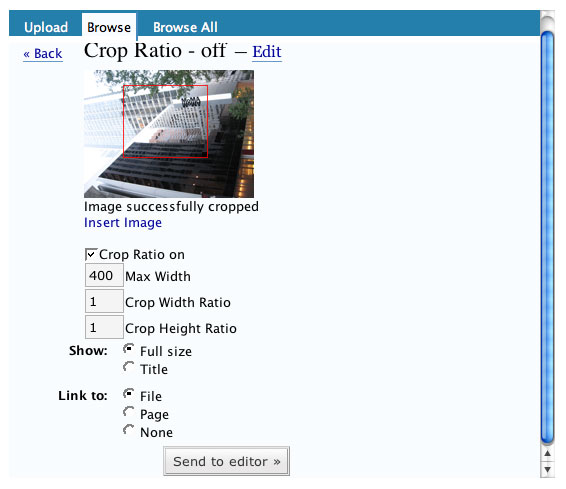
Crop Ratio - off, customized later, with a link
Many thanks to Ronald for adding these new helpful features to the plugin. Let me know, please, how the new version works for you.
UPDATE:
There is an updated version 1.21 of WP Vivtiger Image Resizer Plugin is available for download from Wordpress.org that fixes the most common problems users were having with the plugin. So be sure to update your plugin.
Also, the plugin’s author - Ronald Huereca - has kindly added the support to WP Vivtiger Image Resizer plugin to his site: RA Project Support . If you have any questions regarding the plugin, you can submit your requests at RA Project Support page. Please, consider a donation to Ronald for all his hard work and dedication to this plugin, when sending your requests.
Can You Dig Digg?
Image Manipulation Quick And Easy Way
WordPress 2.1 - new and useful features






October 3rd, 2007 at 9:55 pm
Excellent! This can be a very invaluable tool for many photoblogs and many blogs which constantly link to screenshots or snapshots of things and want to show small previews.
This can also be a tool for those who don’t want to waste time opening and re-opening resizing/cropping programs, or for those that do not have such a program or do not want to use such programs on their computer.
Does the plugin resize only? Like if I have a big image, can I resize the entire image? I realize many versions of WordPress do resize and create a thumbnail automatically.
October 3rd, 2007 at 10:36 pm
Does it require any software installed on the server like GD?
October 3rd, 2007 at 10:58 pm
I can’t wait to try it. I always spent a lot of time with resizing the images on my blog. Now this will happen much faster.
October 3rd, 2007 at 11:01 pm
Thanks, Bes. Let me know, how it works for you.Gary
The plugin will resize the image while cropping (based on the dimensions you specify in the Options), but if you just want to resize the original image, then you can simply stick to the existing Wordpress way to create thumbnails.
Gary, yes the plugin requires the existence of the GD library, since it’s using PHP’s built-in functions to manipulate the images. But then so does Wordpress.
October 3rd, 2007 at 11:06 pm
Simonne, you posted the comment while I was replying to the previous ones
Let me know how it works out for you, or if you have any questions. Have fun with it.
October 3rd, 2007 at 11:36 pm
Wow! That’s really neat! I need to update my Wordpress installation before I install anymore plugins though (plus I’m pre-2.1). This will be good motivation.
October 4th, 2007 at 8:55 am
So, it’s like having a graphics package right in WordPress, am I correct? If all my blogs were on WordPress, I would consider using this even though I love PhotoImpact. However, I still have one on Moveable Type. (I don’t suppose there’s a plug-in for that?)
October 4th, 2007 at 9:43 am
How cool is that! Great choice for a prize, Vivien! And you benefited the rest of us, too. How thoughtful of you hehe, love the plugin name too
October 4th, 2007 at 10:14 am
This is what i was always looking for . Thanks for the mention .
October 4th, 2007 at 5:57 pm
A plugin named after you! Well, I’m going to use it. Looks like a great time-saver. What a clever chap that Ronald is.
October 4th, 2007 at 8:16 pm
Thank you all for the excellent feedback. Vivien does have some great ideas, and I am fortunate to have implemented a few of them.
I’m curious to know how the plugin works for you all, so please feel free to let Vivien know or she can get you in touch with me if need be. Thanks again.
October 4th, 2007 at 8:16 pm
Brian, I hear you - I need to update my WP too, although mine is post-2.1, and I heard that the latest version is not compatible with certain plugins that I want to use. However Image Resizer plugin works well with the WP 2.3.
Laura, it’s like an improved version of the native WP image upload. I too like using Photoshop for my images, but sometimes I just have too many screenshots to post, and that’s why I wished for a plugin that will save me time doing some routine crops.
Thanks, Lauren. Glad you liked the name. That was Ronald’s idea to use my nickname for this plugin’s name
Madhoor, aren’t you glad you finally found what you were looking for?
John, let me know how it works for you. Ronald is a very clever chap indeed and a very humble one. I’m trying to persuade him to show his face here and take a bow
October 4th, 2007 at 8:22 pm
hey, Ronald, you did come after all.
Thanks a lot for this plugin. Sorry it took me so long to make it official on my blog.
Ronald has released the plugin on Wordpress.org on Sep 8 and by Oct 3 it had already 477 downloads - that’s with no promotion whatsoever. Now it’s up to 496 downloads.
October 8th, 2007 at 3:00 am
this was almost the tool of the day for me, except for one small thing: I need to make square crops from time to time, a check box which only lets me make square selections would be great
or maybe an input where I could write down the desired image size of the crop would be awesome.
October 8th, 2007 at 3:53 am
Awesome. I’m going to install it right now.
October 8th, 2007 at 8:09 am
Amazing. This is perfect for multi-user situations-especially when a lot of authors don’t know how to image edit.
October 8th, 2007 at 8:38 am
ovidiu, try specifying the even proportions for the crop ratio, say 1:1, and equal numbers for the image size, say - 200×200. See if it does the trick for you.
Good luck with the plugin, Silveira.
Jason, another great idea for the purpose of this plugin. I should add it to the Plugin’s description on this page. Thanks.
October 8th, 2007 at 2:58 pm
thx for the answer, but this would mean I have to go to the options every time I need other crop ratios take this plugi nas an example: http://blog.japonophile.com/flexible-upload/ here you can set your options as defaults, but yo ucan override them while uploading. If this plugin had cropping options or the vivtiger plugin had the option to set crop ratio at upload time for each picture that would be amazing.
thx for the help anyway
October 8th, 2007 at 4:34 pm
Hmnnn. Not quite able to get it to work. I uploaded the folder to the plugin directory. I activated the plugin. But I am unable to draw a crop box on an image in the editor. I see the Vivtiger loading beneath the image but there is no ability to crop. What am I missing here? I am sure it is something obvious.
(winxp firefox 2.)
October 8th, 2007 at 4:43 pm
Great! Thank you.
October 8th, 2007 at 7:49 pm
ovidiu,
Those are good suggestions and I don’t think they’d be too difficult to implement. Let me play around with it and see if I can add them in without cluttering up the UI. Is it okay if I contact you personally? Vivien will be able to supply me with your e-mail address.
Take care.
October 8th, 2007 at 8:11 pm
Esau, did you finally get the plugin working? I got confused with your 2nd comment.
Ronald, wow, thanks so much for looking into the option suggested by ovidio. Ovidio, let me know if it’s okay for me to give your email address to Ronald?
October 8th, 2007 at 8:25 pm
Esau,
It sounds like the image you are uploading is smaller than the max-width of the plugin options. If that is the case, the plugin will load, but since resizing isn’t necessary, the resize option will not show.
October 9th, 2007 at 12:11 am
sure it is ok, please do contact me, after all it is I who requested something
btw. let me explain a little more in detail why I was asking for those features:
I am currently building a site for a small local newspaper and they have different kind of posts: normal posts, sticky posts and top-stories posts, meaning these 3 types of posts have to include different sized pictures and thumbs (thats how they wanted it) and with the other plugin I mentioned in my last post, they could change the thumb/image size when uploading, it even included the option to upload more than one file at once, so all that was missing was a cropping function at upload time as I don’t want them to mess around with their images after uploading.
I’d be very grateful if you could offer this with this plugin and maybe also try to remain compatible with the flexible upload plugin?
October 9th, 2007 at 3:09 am
Hi Ovidiu. I passed your email address to Ronald. Look forward to seeing the new features implemented.
Thanks for taking care of this, Ronald.
October 9th, 2007 at 9:41 am
thanks for this amazing plugin!!!
October 15th, 2007 at 2:29 pm
Awesome! Works perfect. Cheers!
October 15th, 2007 at 2:34 pm
You’re welcome, Sergio.
Ingo, you’ve got an amazingly beautiful site
October 15th, 2007 at 7:09 pm
Oh thanks Vivien!
But I have quite bad news: widgets.php (dragging, dropping, popup to configure) doesn’t work anymore with the plugin activated. :o(
i’m on WP 2.2.1.
October 15th, 2007 at 7:49 pm
Ingo Vogelmann,
Upon seeing your comment, I went and found the 2.2.1 release and placed a widget ready theme with the Vivtiger plugin activated. I wasn’t able to duplicate the drag/drop difficulties.
If I had to guess, it may be a plugin conflict with one of your other plugins.
If you’re interested, I’ll be glad to help troubleshoot the problem. If not, I apologize for the inconvenience of the plugin not working for you.
October 15th, 2007 at 8:03 pm
Thank you Ronald. Well, it’s not that tragic. I can deactivate and activate it again when I need to drag widgets around which isn’t that often.
Thanks for your nice offer.
October 16th, 2007 at 9:20 pm
Hey all,
A new release (version 1.15) is out. Crop options are included per image upload so you can override the default options per image.
Vivtiger Image Resizer 1.15
October 16th, 2007 at 10:32 pm
Thanks so much, Ronald. I’ve just updated this post to reflect the changes, added a couple of new screenshots as well.
October 17th, 2007 at 4:44 am
LOL. widgets.php works now.
October 19th, 2007 at 4:12 pm
I can’t seem to get the image resizer to work. I have the plug-in installed and activated, and I can edit the options for it. However, whenever I go to a post to upload an image, it still shows all of the original WordPress options instead of any of the new ones for cropping, etc.
October 19th, 2007 at 6:22 pm
Mark, is your uploaded image bigger than the max width size you specified in the Options? You’ll see the new crop options only if your uploaded image is bigger than the default size set in the options, otherwise you’ll see only the default Wordpress image options.
October 19th, 2007 at 11:11 pm
Yes, it’s definitely bigger.
October 20th, 2007 at 4:15 am
Mark,
What are the dimensions if you don’t mind sharing? And the max-width you have?
October 22nd, 2007 at 3:44 pm
Really cool plugin, help when im not at home and dont have photoshop.
wish u would continue the plugin for future versions too
October 23rd, 2007 at 4:51 am
I translated it to Turkish. Maybe you want to download it.
October 23rd, 2007 at 12:07 pm
Glad you liked it, Alfred.
Emre, thanks for the translation!
February 4th, 2008 at 10:15 am
VivTiger 1.02, WP 2.3.2.
I am getting this error when using the plugin — it occurs after selecting “Insert image”:
Fatal error: Allowed memory size of 33554432 bytes exhausted (tried to allocate 2560 bytes) in /home/madrive1/public_html/wp-content/plugins/vivtiger-image-resizer/wp-vivtiger-image-resizer.php on line 171
What am I doing wrong?
Thanks.
February 4th, 2008 at 11:07 am
CBates, looks like you’re uploading a very big image file (over 3 Mb), and your system cannot resize it. Try uploading a smaller size image.
February 4th, 2008 at 11:33 am
Thanks for the quick reply.
Could it be some information contained in the jpg file?
One file I am trying to upload is 674kb, and it causes an error, while I have successfully uploaded 800+kb files.
February 4th, 2008 at 12:01 pm
I just sent you an email to ask for the details of your image.
February 15th, 2008 at 12:54 pm
Hello,
thank you for this great plugin! But I have problem. I have activated plugin, everything looks well but after upload plugin shows me Vivtiger Image Resizer loading… and after some seconds disappear.
Can you help me?
February 16th, 2008 at 12:00 am
I sent you an email asking whether the size of the uploaded image is smaller than the specified crop width, if it is the plugin won’t be activated.
February 18th, 2008 at 1:37 pm
Thank you for your advice. Now it is going right.
Have a nice day.
February 19th, 2008 at 1:58 am
hurrah. glad it worked out!
February 22nd, 2008 at 10:55 am
Hi,
I’m using Vivtiger 1.02 and WP 2.3.1
I can activate the plug-in just fine, but I cannot “update the settings” under options.
I get “Cannot load wp-vivtiger-image-resizer.php”
I get the same error w/ 1.15, I do see the file.
Any suggestions?
February 22nd, 2008 at 12:09 pm
Hi Raymond. Looks like you’re having an issue with permissions: you need to make sure that the plugin folder settings and all the files beneath are
set to 755. You should be able to change the folder/file permissions with your FTP client and right-clicking on the folder/file to change its permissions. Hope this helps. Let me know.
February 22nd, 2008 at 1:39 pm
Thanks for the quick respons Vivien.
I tried to see the “properties” of the directories using Windows Explorer’s http://FTP. It showed “this server does not support changing file permission” So I have a help ticket into my web hosting company.
The funny thing is other plugins are working fine with updates. So I’m not convinced it is permission. I’ve deactivate, deleted the directory and re-upload and activate. Still no go.
Can I rename the directory prior to upload?
My hosting server is Windows. So I’m not sure if it’s stuck on a local permission thing. Or the file missing is stuck in its memory.
February 22nd, 2008 at 1:51 pm
no, it’s not a good idea to rename the folder. I just sent you an email to address your issues further.
February 24th, 2008 at 4:56 pm
Hi
I have an issue with the cropped image that is saved as xxxxx.large.jpg
If you want to have a look, click the images on http://winning-smiles.co.uk/fe.....er-photos/ on some images there is a black line saved below and to the right, and on others a less thick line and on some, none at all. There were no lines on the original images, and they are all exactly the same size.
It makes the images settings look a little untidy. Would you have any suggestions?
Matt
February 24th, 2008 at 10:26 pm
Andrew (or is it Matt?),
I’m the author of the plugin and I’ve experienced some of the same issues. It’s usually when the red crop-box is too close to the outside edge of the image that the black lines show up.
I have to be honest… I’ve tried to fix it by adjusting the algorithm, but I only make it worse. For 2.5 the upload system will completely change and I’ll try to modify the plugin for that and hopefully improve the accuracy.
February 24th, 2008 at 10:37 pm
I have the same problem at times. A solution would be wonderful.
February 24th, 2008 at 10:41 pm
Matt & Ingo, sorry to hear that you’re having problems with the plugin. I myself haven’t experienced that issue with the images, but really appreciate Ronald’s further commitment to this plugin.
Thanks for getting back to us on this, Ronald. All the best with the fix.
February 24th, 2008 at 11:01 pm
I’ll continue working on a fix then. I spent some of the weekend helping Raymond out with his version and seems to have fixed his issues (he was on IIS and not Apache). Just stay subscribed to this comments section or keep a look-out in the “plugins” menu for an updated version hopefully within two weeks.
February 24th, 2008 at 11:38 pm
Thanks Ronald, much appreciated!!
February 26th, 2008 at 6:49 am
Hi,
I would very much like to use your plugin but am having a problem when I activate it — all that is inserted into the post is the text of the filename. No image appears.
I am using Wordpress 2.3.3 and Vivtiger 1.1.7.0
February 26th, 2008 at 5:00 pm
I’ve released an updated version. Could those who had issues with the “black” areas please report back in if it fixed the issue? Thanks.
February 27th, 2008 at 11:33 am
Hi
Matt here, working on behalf of Andrew. Well done indeed, problems are all sorted. I shall be uploading the rest of the photo’s this evening
Thanks for your help
February 27th, 2008 at 12:34 pm
Seems like working mate!!
February 27th, 2008 at 2:39 pm
Ronald, thanks so much for the updated version of the plugin and for all your hard work and dedication. Glad it fixed everyone’s problems here.
I’ve updated this post with the new details.
If anyone has any issues with the plugin, you can now send requests directly to Ronald from RA Project Support page. Please, consider a donation to Ronald for all the time he spends addressing your issues.
February 29th, 2008 at 7:34 am
Can the current ver. resize images already in drafts that are hosted by a 3rd party?
If no, will you be adding this feature?
March 1st, 2008 at 12:28 am
Hi Nome. The answers to both your questions are “no”. Especially with the future release of WP 2.5 the code for the Vivtiger Image Resizer will need to be updated to keep it working with the new version, so no new features will be added.
March 12th, 2008 at 10:25 am
Hi,
Just installed this plugin and it works great. I do have a question though. On my blog posts i only use the resized cropped image, to link it to the sites where the image came from. So i dont need the .large and .thumbnail files, but they are still saved to my server. I don’t want to go in ftp and delete these files all the time, so how do i prevent the .large and .thumbnail from saving? Im not a programmer so if youd share for example a line of code at the end of the upload and crop process to delete these 2 files it would be great.
Thanks
April 3rd, 2008 at 12:19 pm
Great plugin! But I’m using WP 2.5 now. When will you folks be releasing your new compatible version?
April 3rd, 2008 at 11:24 pm
@Bryan,
I’m sorry, but there are no current plans to port this over to 2.5. It would be an entirely different plugin since the entire media structure changed. And to be honest, I don’t have the time right now to create a new plugin as I have other projects on my plate.
If anyone would like to take this over, please contact me or Vivien.
April 8th, 2008 at 5:26 pm
thanks for plugin, perfect
May 12th, 2008 at 8:38 pm
I like the plugin a lot. I’d like to use it on my site but I made need a few mods for it so that it will be an even better fit. I run a blog and i will have limited file space and so I’d like to make sure the photos being uploaded are only smaller sizes and something 2000px wide. Would it be possible maybe on a future update to have each size have a preset largest side and be resized to that amount leaving no huge image on the server? Let me know if this is possible. I would be glad to donate.